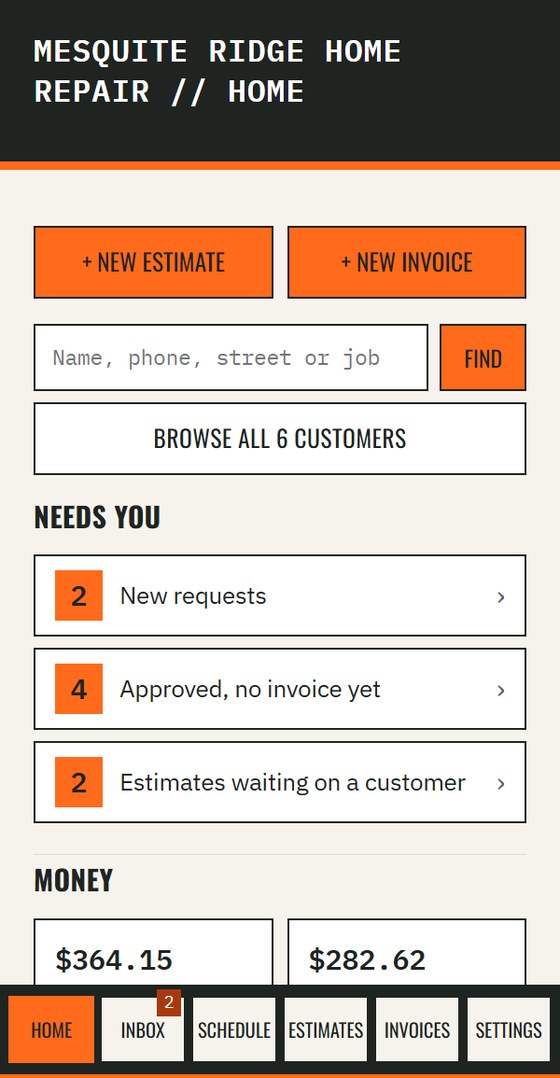
Your day at a glance
You open the app and see what needs you: new requests, estimates waiting on a customer, and what you are owed. Everything is one tap away.
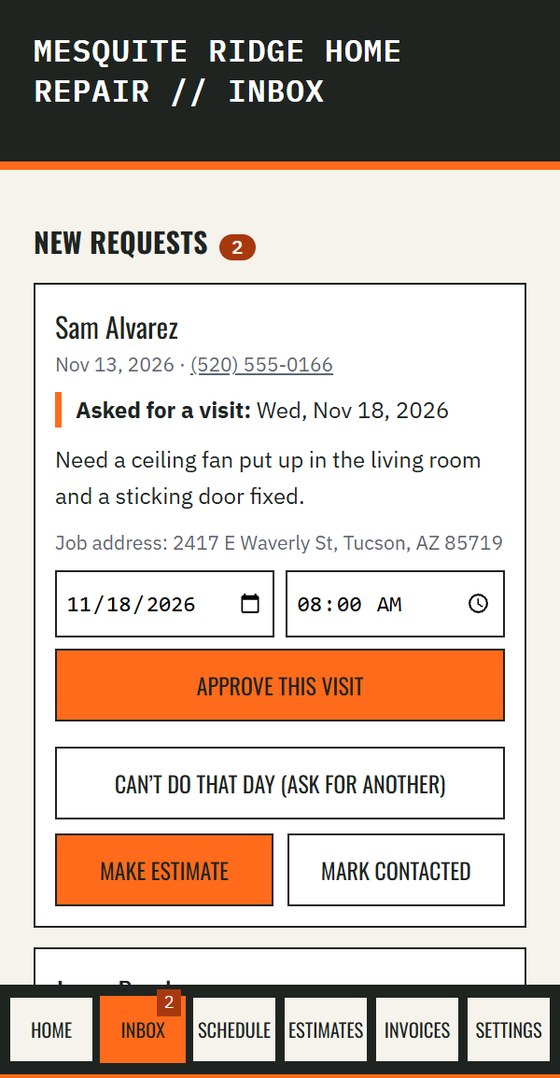
A request comes in
Requests land in one list, from your lead page or from customers booking online. If a customer asked for a day, it shows right on the card. Approve it, ask for another day, or turn it into an estimate.
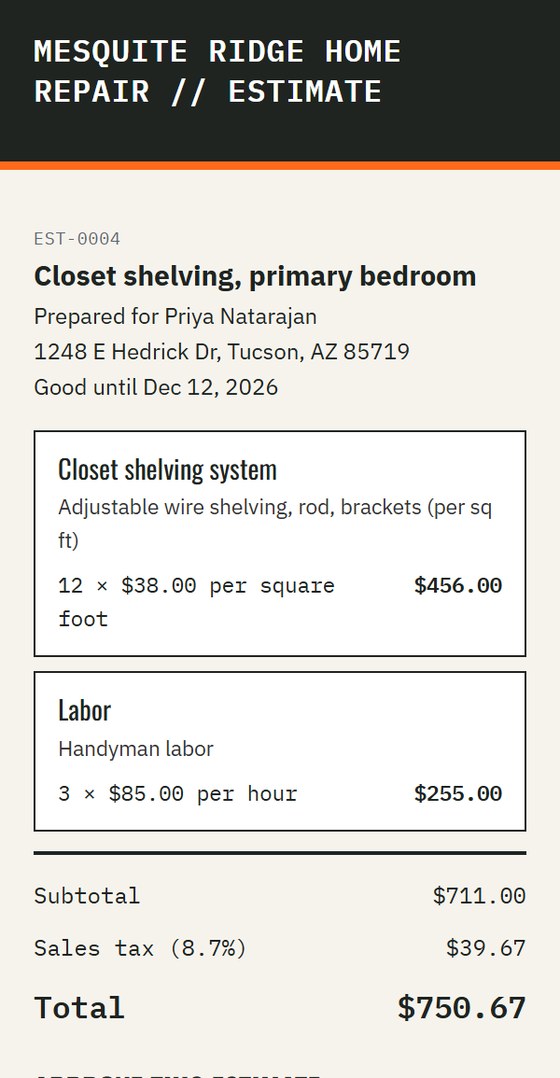
Build and send an estimate
Pick items from your price book, add a custom line, and send a link by text, email or QR code. The totals and sales tax are done for you.
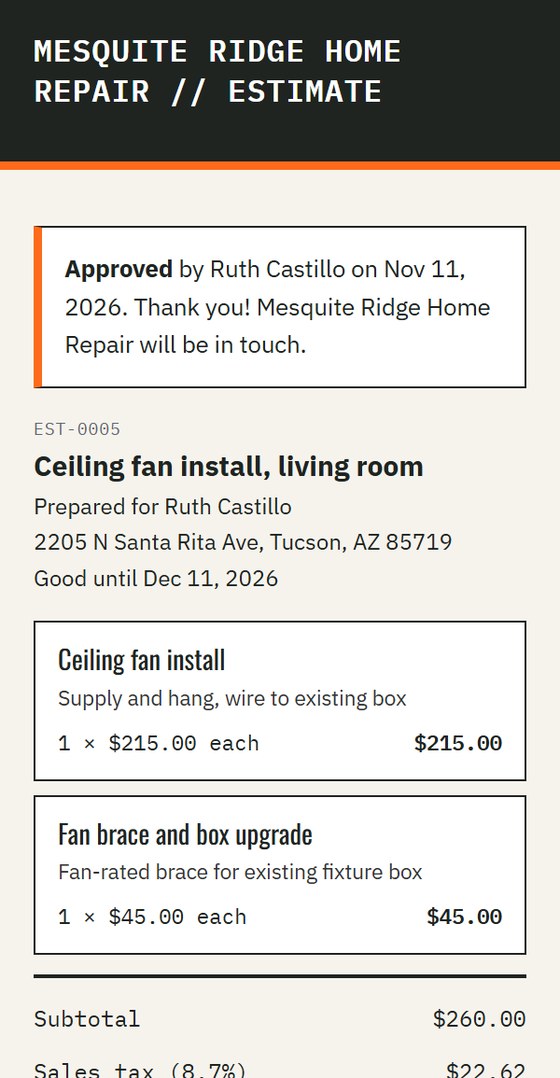
The customer approves from a link
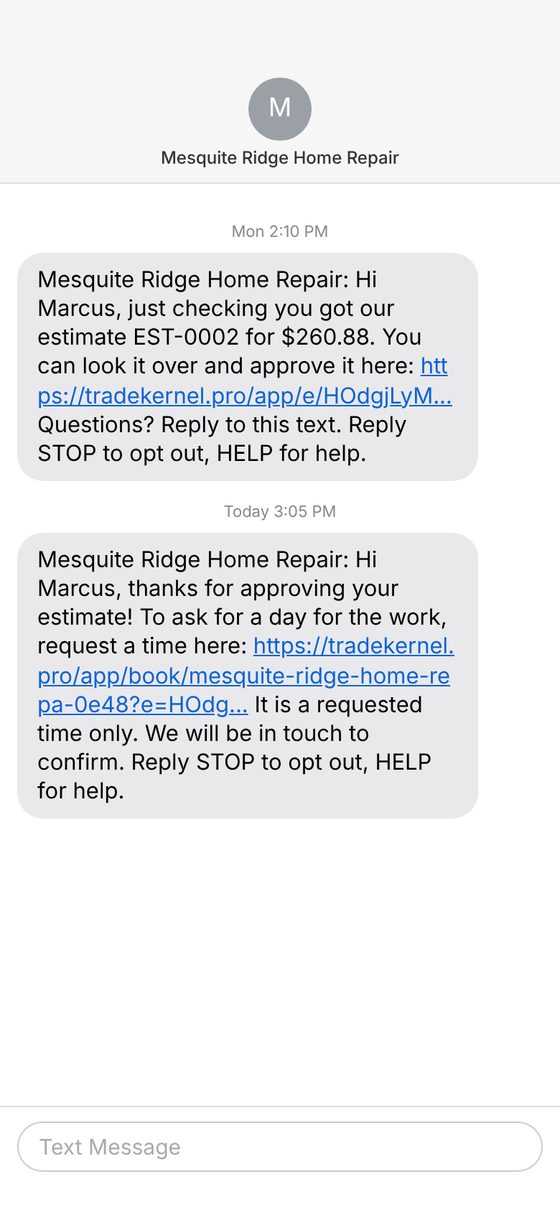
No app and no login for your customer. They open the link, look it over and tap Approve. You see it right away.
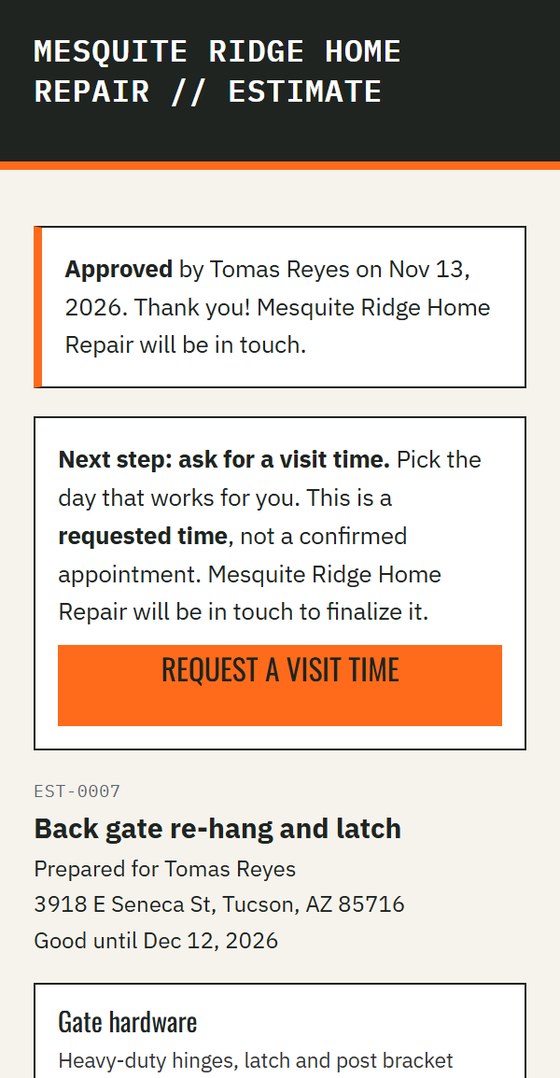
The customer asks for a time
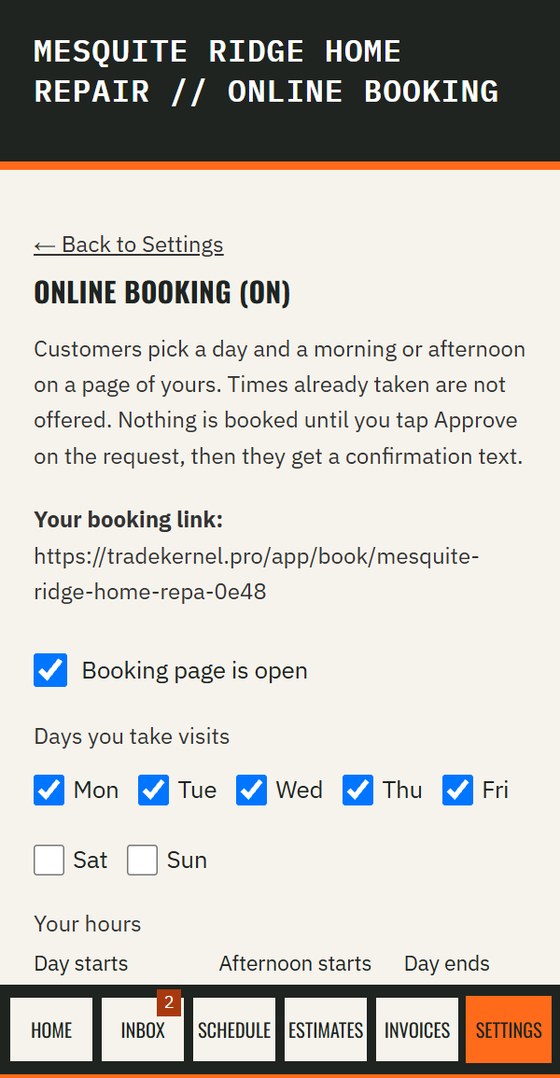
They pick a day and morning or afternoon. Times you are already booked for are not offered. It is a requested time only, and the page says so.
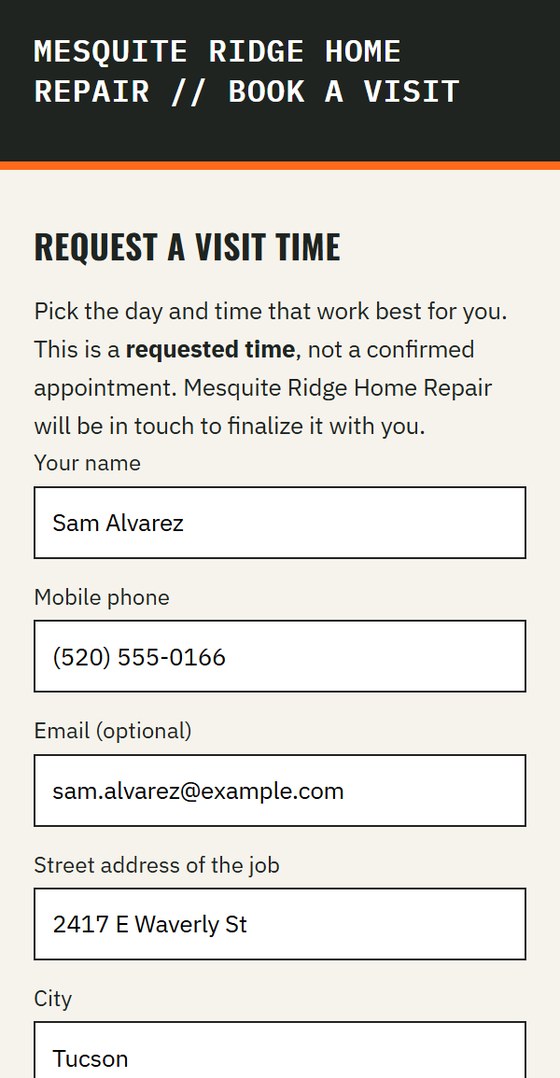
You approve it, and it is on the schedule
Tap Approve on the request and the visit lands on your calendar, for you or a crew member. Nothing is booked until you approve it.
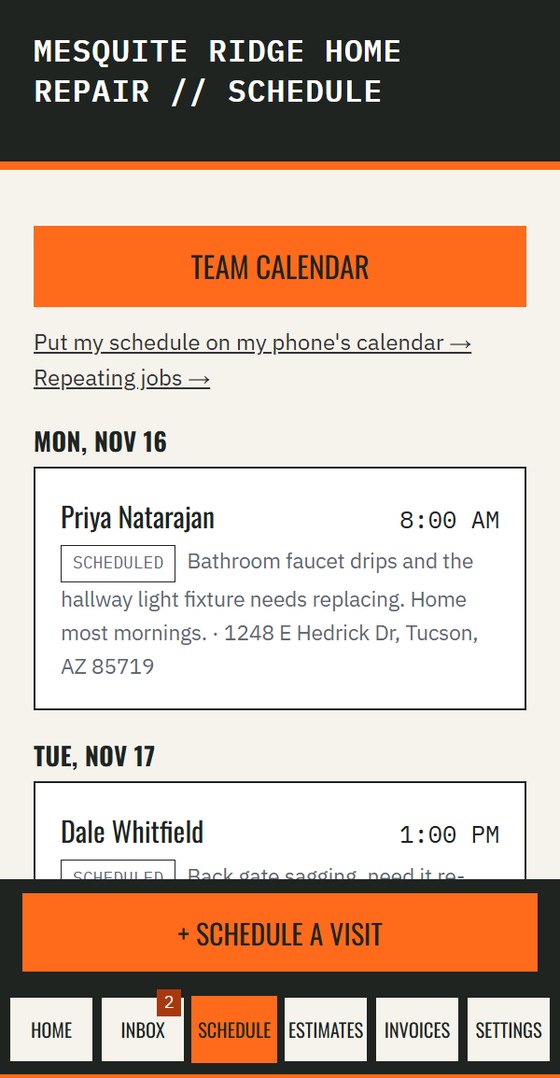
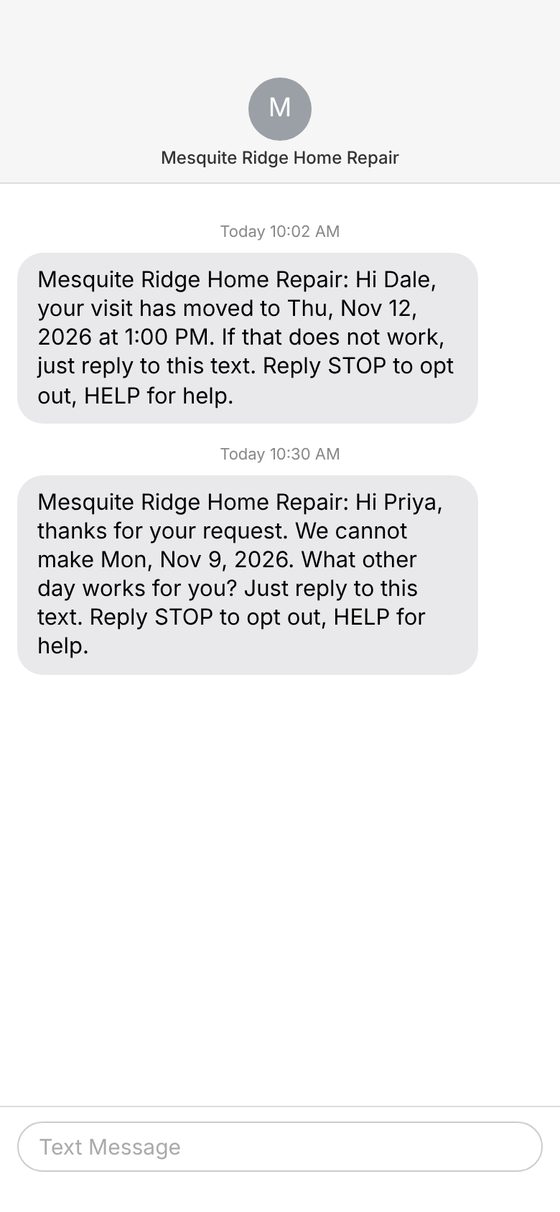
Texts keep the customer in the loop
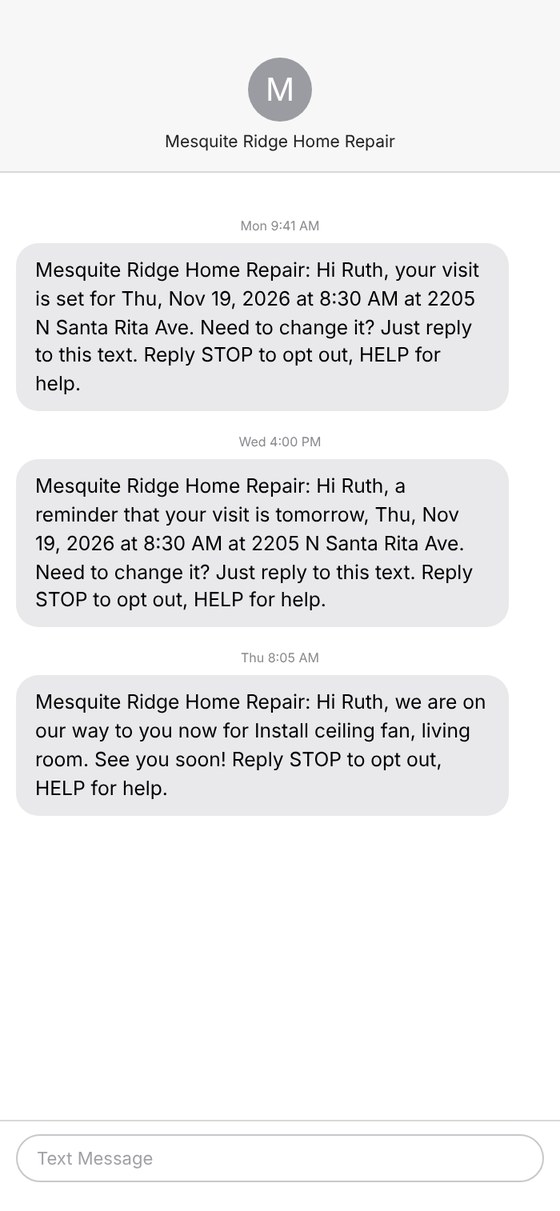
Visit confirmations, a reminder the day before, an On my way text, reschedule notices, and estimate follow-ups go out for you. Every text ends with how to opt out.
Invoice, then get paid
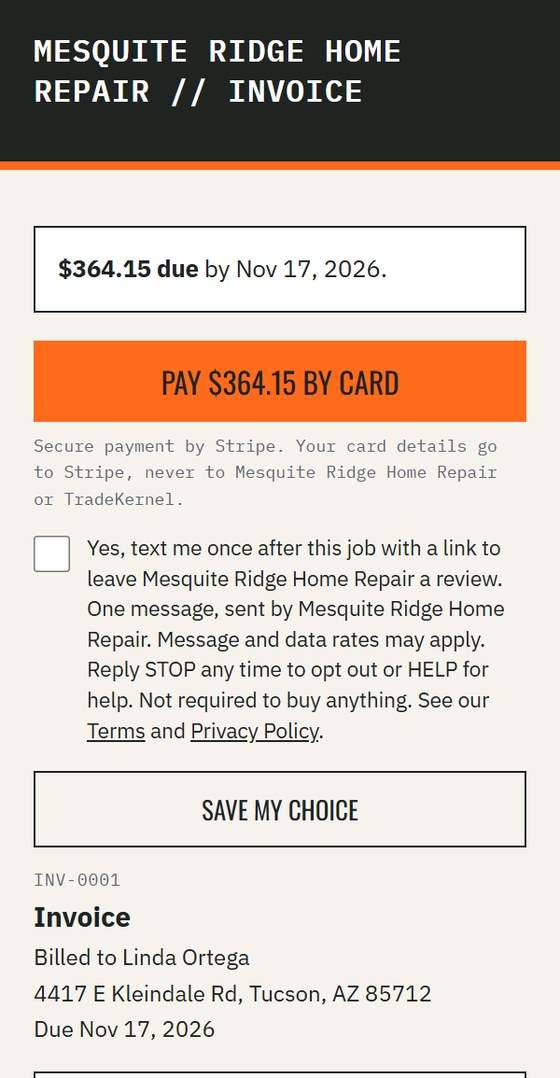
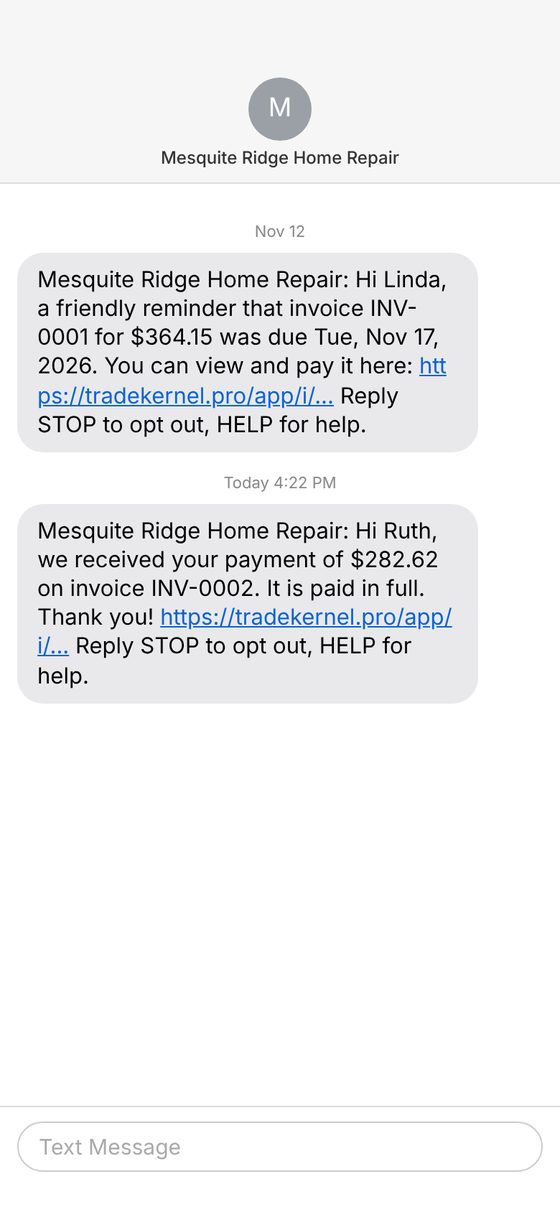
Make an invoice from the approved estimate in one tap and send the link. When the money comes in, the customer gets a receipt. If an invoice goes unpaid, they get one friendly reminder.
On the job: photos, costs and miles
Take job photos, snap a receipt and add an expense, and tap Arrived to have the miles worked out from the address. On my way, Arrived and Done times are saved on the visit for your own reference. With no signal, these wait on your phone and send themselves when you're back in range.
Make it yours
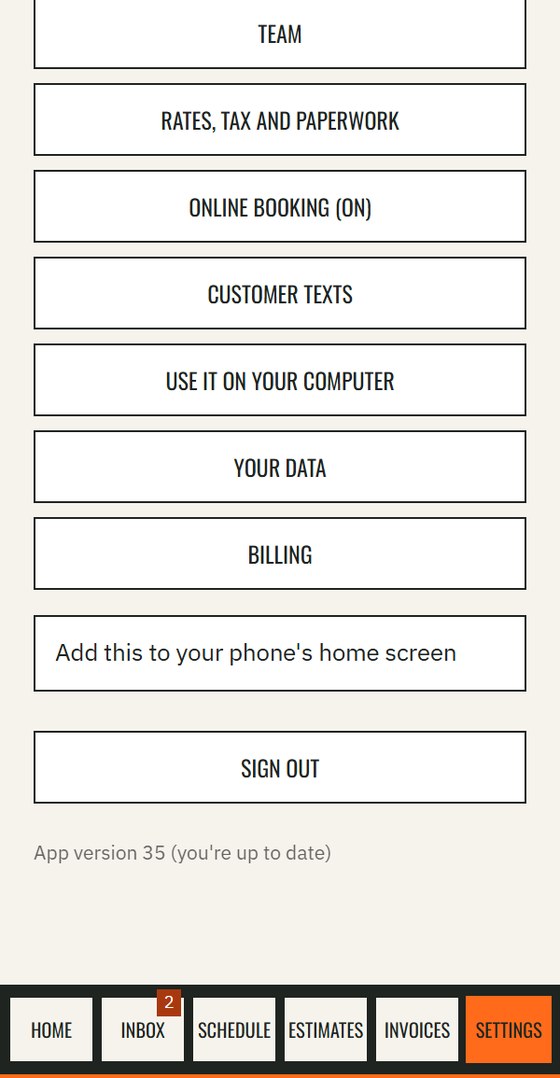
Turn on online booking, choose your days and hours, and cap how many visits you take at once. Add review requests or texting when you are ready.
Try It On Your Own Jobs
Your first 14 days are free, with no card. $39/month for you plus 2 crew after that, and 3 more seats are $25/month if you need them.
Start My Free Trial →Texting is not part of the free trial. It starts after you add a card and your business is registered for texting.